← Help Centre / Communications
Prepare and mark a communication as sent
Office does not send externally. Mark as Sent records your acknowledgement; it is not proof of delivery or reading.
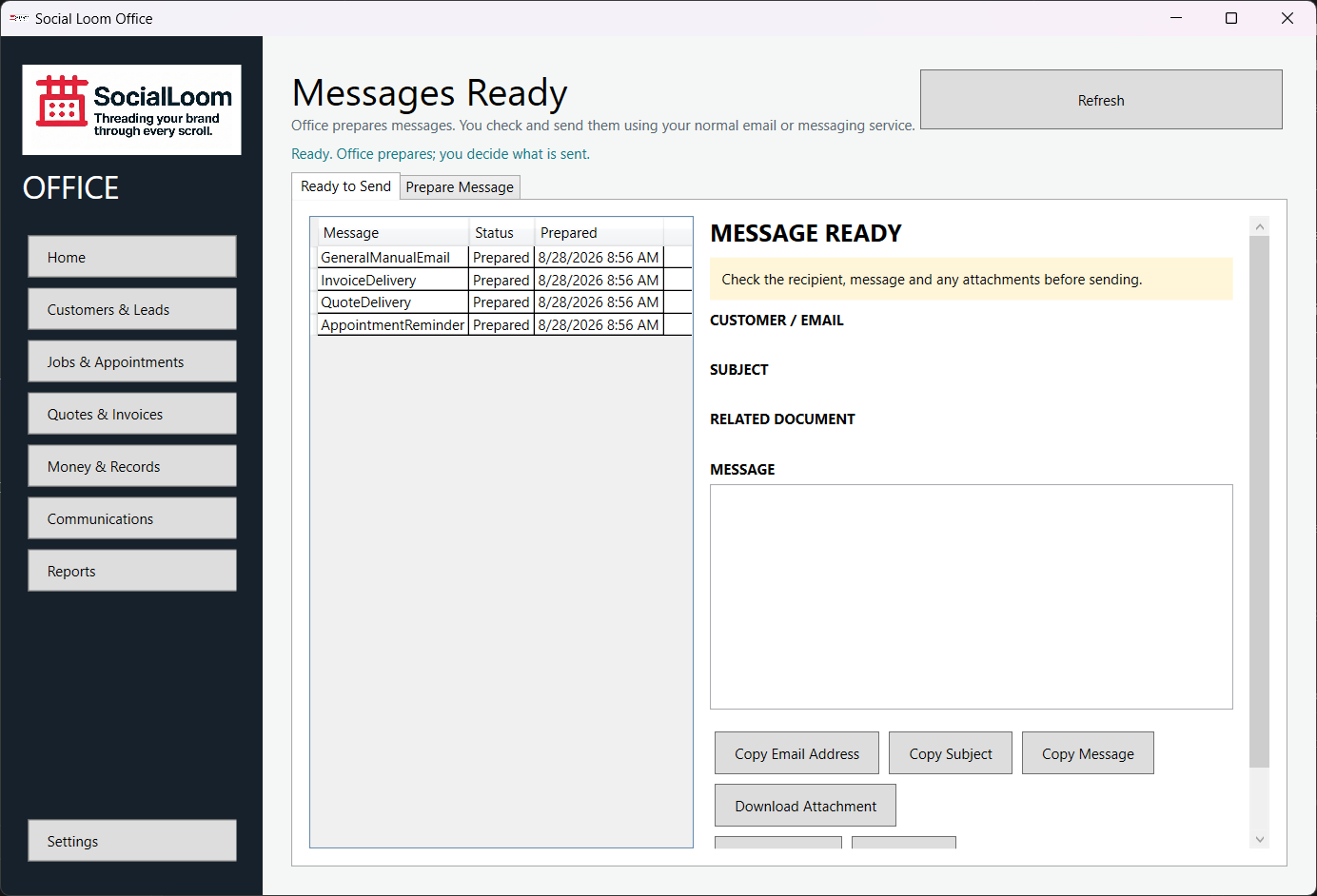
- Open Messages Ready and select the prepared item.
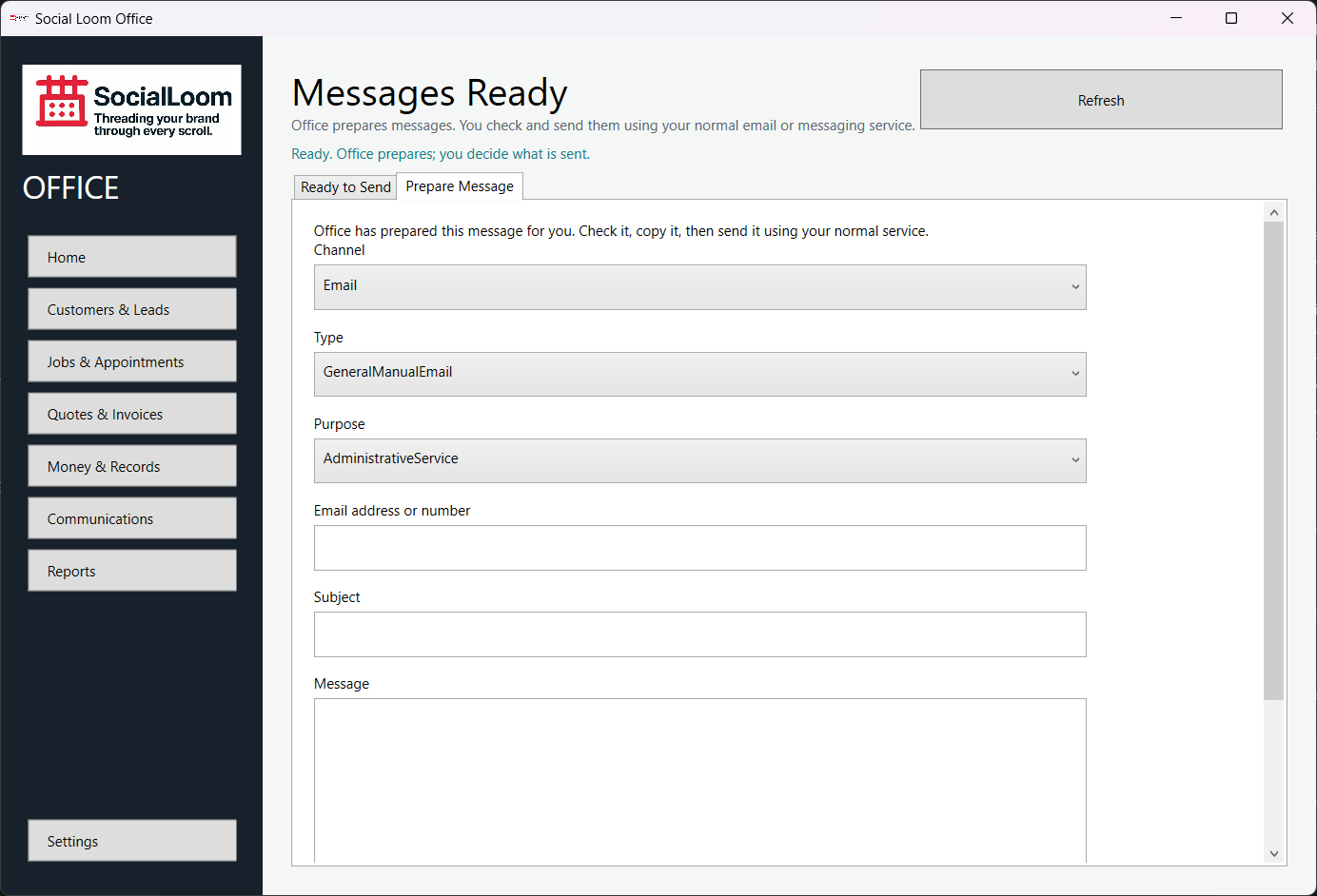
- Check the recipient, subject, message and any document.
- Copy the fields or open them in your normal service, then send them yourself.
- Return to Office and choose Mark as Sent only after you have sent it.